Mac OS: Set photo creation date as file date

The file date of exported photos from the Photo-Application do not show the create date of the photo. Here is a Solution with the Automator and the "ExifTool by Phil Harvey" to change the file date to the photo creation date. You can download the Workflow or create with the guide below. Execution: Download and install first the "ExifTool". Then download To execute it unzip the workflow, open it by double click on the workflow file. Drag and drop your photos into the first block (Get Specified Finder Items) or click on Add.... After click on Run in the right upper edge. Be aware any usage is at your own risk.


Preconditions

  • Mac OS Catalina (tested version)
  • XCode (required from ExifTool to be able to run the command line tool)
  • ExifTool version 12.18 (tested version)
  • DateChange Automator App (download here)

Install and Execution

  • Download the "ExifTool by Phil Harvey" (link here)
  • Install the "ExifTool by Phil Harvey"
  • Download or create the Automator App (download here)
  • Create a folder and copy the photos in for the file date change in
  • Execute the DateChange Automator App

Steps to create the workflow/app

  • Open the Automator on your Mac from the installed applications
  • Select New Document and App or Workflow
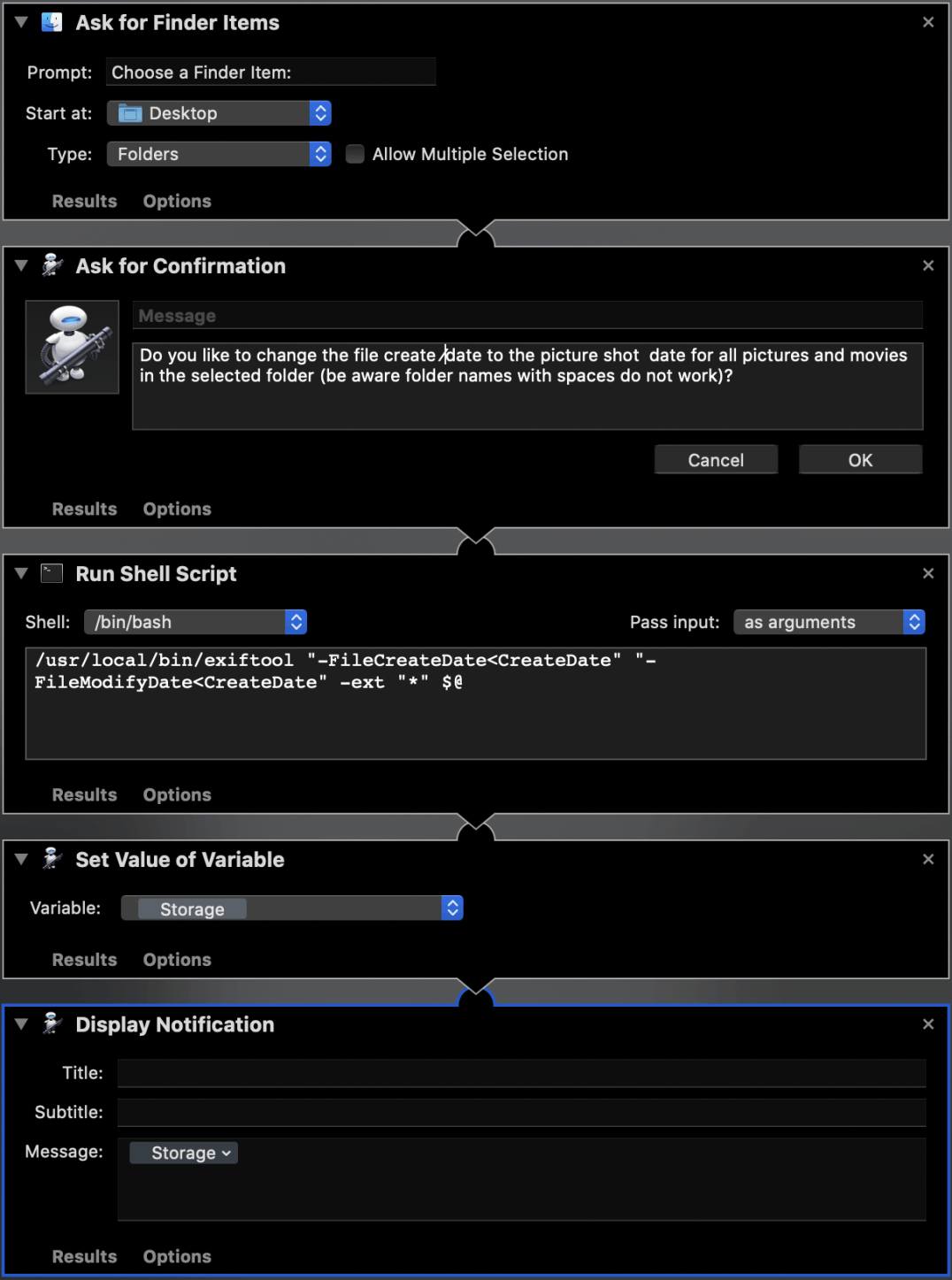
  • Drag and Drop following items into the right field in the order as listed:
    "Ask for Finder Items"
    "Ask for Confirmation" (add liked message to confirm for proceed)
    "Run Shell Script" 
    "Set Value of Variable"
    "Display Notification"
  • Run Shell Script: Shell= "bin/bash, Pass input= "as arguments" command= /usr/local/bin/exiftool "-FileCreateDate<CreateDate" "-FileModifyDate<CreateDate" -ext "*" $@
  • Set Value of Variable: Enter a new Variable Storage (will be listed below) and Drag and Drop it to "Display Notification"
Mac OS: Rename Files

This is an Automator App which rename multiple files and adding a counter behind. Multiple options are possible. It need no extra tools, just the in Mac OS included Automator. Be aware any usage is at your own risk.


Preconditions

  • Mac OS Catalina (tested version)
  • Renamer Automator Workflow (download here)

Install and Execution

  • Execute the Renamer Automator Workflow
  • Drag and drop liked files into the first box
  • Set the liked Changes
  • Run the Workflow

Steps to create the workflow

  • Open the Automator on your Mac from the installed applications
  • Select New Document and Workflow
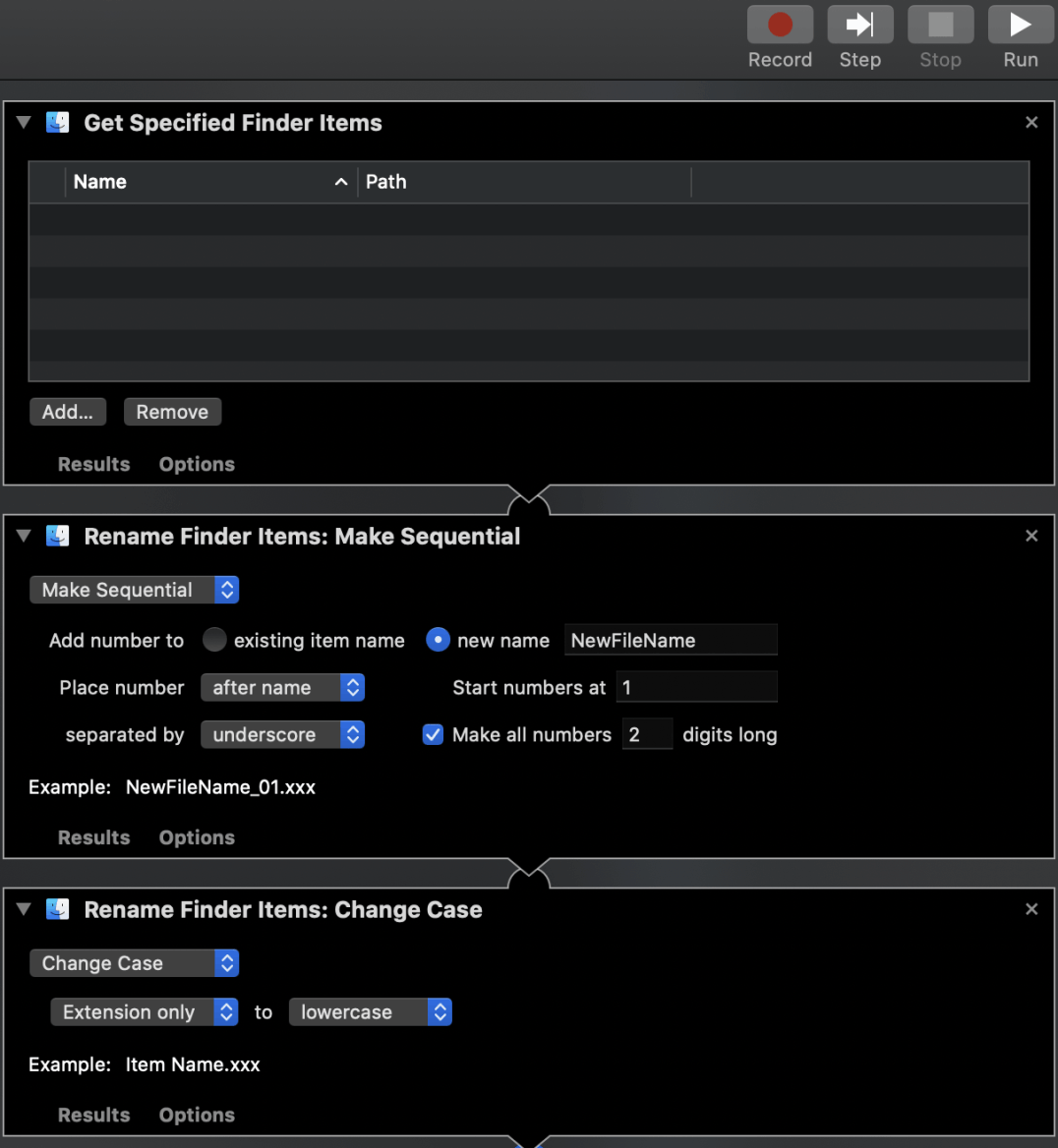
  • Drag and Drop following items into the right field in the order as listed:
    "Get Specified Finder Items"
    "Rename Finder Items" (Make Sequential for numbering)
    "Rename Finder items" (Change Case for lowercase) 
  • Set the fields as in the example picture right side
  • Drag your pictures into the first box (Get Specified Finder Items - run and remove the pictures after the run)

© Copyright 1998 NEWROCK - All Rights Reserved